
• Zur Hauptnavigation springen
  • Skip to main content
  • Zur Hauptsidebar springen
  • Zur Fußzeile springen
Logo

CITROWEB Webdesign

Erste Wahl für Ihren Onlineauftritt

  • Home
  • Leistungen
    • Webdesign, Webentwicklung und Beratung
    • Online-Shops mit WooCommerce
    • Technische Unterstützung für WooCommerce-Shops
    • Suchmaschinenmarketing
      • SEO: Ihr Webauftritt erhält mehr relevante Besucher
      • SEA: Suchmaschinenwerbung für Ihren Webauftritt
    • Webhosting
  • Blog
  • Kontakt aufnehmen

Blog

Remove navigation menu from a page in Genesis themes

6. September 2022

There are several ways to remove or hide your primary and secondary navigation menus using the Genesis framework in WordPress.

The easy way is to hook into the execution via an action and remove the action responsible for the menu. To prevent the navigation menus from disappearing on all pages, a check is made beforehand to determine on which page the execution is currently taking place.

Remove primary navigation menu from home page

add_action('get_header', 'cw_child_remove_genesis_do_nav');
function cw_child_remove_genesis_do_nav() {
   if (is_home()) {
      remove_action('genesis_before_header', 'genesis_do_nav');
   }
}

If the primary navigation menu is included after the header, instead of genesis_before_header, genesis_after_header is used with remove_action (code line 4).

Sometimes it is also necessary to specify a priority parameter, as in the case of the genesis-sample-theme, if the action was registered with a priority. Line 4 then looks like this:

remove_action('genesis_header', 'genesis_do_nav', 12);

And already it works with the sample theme from Genesis.

Remove secondary navigation menu from home page

add_action('get_header', 'cw_child_remove_genesis_do_subnav');
function cw_child_remove_genesis_do_subnav() {
   if (is_home()) {
      remove_action('genesis_after_header', 'genesis_do_subnav');
   }
}

Remove primary navigation menu from a specific page

First, the ID of the page or post must be known. You can see them in the URL of the edit dialog of the page.

Edit URL page

The code to remove the main menu from the page with ID 7 looks like this:

function cw_remove_genesis_do_nav() {
   if (is_page(7) ) {
      remove_action('genesis_after_header', 'genesis_do_nav');
   }
}
add_action('get_header', 'cw_remove_genesis_do_nav');
Kategorie: Genesis Framework

Fix: Items can not be removed from WooCommerce shopping cart (NGINX or W3 Total Cache).

3. September 2022

On a client’s WooCommerce store, we noticed it was not possible to remove items from the shopping cart. When clicking on „Remove item“ the shopping cart was reloaded and there was no change.

It can have various causes. Often, it is a misconfigured caching. But that was not the case here. That was my first guess as well. However, nginx was in use here and the configuration used in the server did not look as recommended by WordPress (https://wordpress.org/documentation/article/nginx/) or nginx itself (https://www.nginx.com/resources/wiki/start/topics/recipes/wordpress/).

Solution if it is an nginx error

The location / section of the vhost must look like this:

location / {
   try_files $uri $uri/ /index.php?$args;
}

In the case of the customer, ?$args was missing from the section. When making changes to the nginx configuration, do not forget a service reload. Under Ubuntu, run the following:

systemctl reload nginx

Solution: It is a caching problem with W3 Total Cache

If the caching plugin W3 Total Cache is used in the WordPress installation, it is necessary to configure the plugin so that the shopping cart or checkout pages are not cached. Otherwise, it may cause problems.

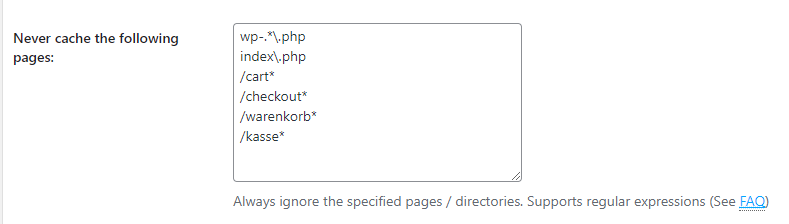
Under W3 Total Cache -> Page Cache -> Never cache the following pages insert the following entries:

"Never cache the following pages" at W3 Total Cache

Here again the values to copy out:

/cart*
/checkout*

or

/warenkorb*
/kasse*

depending on whether the German or English version of WooCommerce is in use.

Kategorie: development, WooCommerce

Lösung: Artikel können nicht aus WooCommerce-Warenkorb entfernt werden (NGINX oder W3 Total Cache)

3. September 2022

Beim WooCommerce-Shop eines Kunden, stellten wir fest, es war nicht möglich Positionen aus dem Warenkorb zu entfernen. Beim Klick auf „Position entfernen“ wurde der Warenkorb neugeladen und es gab keine Änderung.

Es kann verschiedene Ursachen haben. Oft ist es, ein falsch konfiguriertes Caching. Das war hier bei mir aber nicht der Fall. Das war auch meine erste Vermutung. Allerdings war hier nginx im Einsatz und wurde die Konfiguration, die im Server verwendet wurde, sah nicht so aus, wie von WordPress (https://wordpress.org/documentation/article/nginx/) bzw. nginx selbst (https://www.nginx.com/resources/wiki/start/topics/recipes/wordpress/) empfohlen.

Lösung, wenn es sich um einen nginx-Fehler handelt

Der Abschnitt location / beim vhost muss wie folgt aussehen:

location / {
   try_files $uri $uri/ /index.php?$args;
}

In dem Fall bei dem Kunden hatte bei dem Abschnitt ?$args gefehlt. Bei Änderungen an der nginx-Konfiguration einen Service-Reload nicht vergessen. Unter Ubuntu folgendes ausführen:

systemctl reload nginx

Lösung: Es handelt sich um ein Caching-Problem mit W3 Total Cache

Wird in der WordPress-Installation das Caching-Plugin W3 Total Cache eingesetzt, so ist es notwendig das Plugin so zu konfigurieren, damit die Seiten Warenkorb oder Kasse nicht gecacht werden. Andernfalls kann es zu Problemen führen.

Unter W3 Total Cache -> Page Cache -> Never cache the following pages folgende Einträge einfügen:

"Never cache the following pages" bei W3 Total Cache

Hier nochmal die Werte zum Rauskopieren:

/cart*
/checkout*

oder

/warenkorb*
/kasse*

je nachdem ob die deutsche oder Englische Version von WooCommerce im Einsatz ist.

Kategorie: Entwicklung, WooCommerce

gateway4 has been deprecated, use default routes instead

31. August 2022

The message „gateway4 is deprecated, use default routes instead“ or „gateway6 is deprecated, use default routes instead“ comes from netplan and means the syntax has changed.

In the future, „routes:“ should be used for setting the default gateway.

Before:

gateway4: 10.225.192.1
gateway6: fe80::1

After:

routes:
    - to: default
      via: 10.225.192.1
    - to: default
      via: fd00::1

Then test the configuration with sudo netplan try and apply it with sudo netplan apply. That’s it.

Kategorie: Linux, Network, Ubuntu

gateway4 ist veraltet, verwenden Sie stattdessen Standardrouten

31. August 2022

Die Meldung „gateway4 ist veraltet, verwenden Sie stattdessen Standardrouten“ bzw. „gateway6 ist veraltet, verwenden Sie stattdessen Standardrouten“ kommt von netplan und bedeutet, die Syntax hat sich geändert.

In Zukunft soll für die Einstellung des Standardgateways „routes:“ verwendet werden.

Vorher:

gateway4: 10.225.192.1
gateway6: fe80::1

Nachher:

routes:
    - to: default
      via: 10.225.192.1
    - to: default
      via: fd00::1

Anschließend mit sudo netplan try die Konfiguration testen und dann mit sudo netplan apply übernehmen. Das wars.

Kategorie: Linux, Netzwerk, Ubuntu

How to add logo in @2x Retina resolution for header image in Genesis

23. August 2022

Genesis uses the WordPress feature to put a logo in the header instead of the title and description. However, with the logo, the image size is set to the actual pixels.

To support double pixel density on Retina (iPhone) the logo image must have double the pixel size. The CSS property background-size is then used to set the normal width and height of the logo.

To implement this in the Genesis framework, proceed as follows:

  1. Overwrite standard functionality with
add_theme_support( 'custom-header', array(
	'header_image' => '',
	'header-selector' => '.site-title a',
	'header-text' => false,
	'height' => 150,
	'width' => 500,
) );

This can be extended either via the functions.php (only with your own theme which you develop yourself!) or e.g. via the plugin My Custom Functions.

2. height and width from the example above must be replaced with twice the size of the actual logo. So in this example the logo has the dimensions 250×75.

3. add in your own CSS:

/* replace width and height with actual size, it means half the size you used above in theme support for custom-header */
.header-image .site-title > a {
    background-size: <width>px <height>px;
}

Thanks to Anything graphic(https://anythinggraphic.net/override-header-image-logo-genesis-wordpress-retina-2x-version/)

Kategorie: Genesis Framework, mobile, WordPress

  • « Go to Previous Page
  • Seite 1
  • Interim pages omitted …
  • Seite 3
  • Seite 4
  • Seite 5
  • Seite 6
  • Seite 7
  • Interim pages omitted …
  • Seite 16
  • Go to Next Page »

Haupt-Sidebar

  • How to remove dashicons in WordPress frontend?
  • How do I create a website (homepage) with ChatGPT?
  • Can I create a website (homepage) with ChatGPT?
  • iOS restrictions re: bringing up the keyboard on programmatic focus
  • iOS restrictions re: bringing up the keyboard on programmatic focus
  • Remove user listing from WP-JSON
  • Benutzerauflistung aus WP-JSON entfernen
  • What does „Video is not the main content of the page“ mean?
  • Was hat es mit „Das Video ist nicht der Hauptinhalt der Seite“ auf sich?
  • Remove WordPress logo from toolbar
  • Efficient onboarding simplified: LearnSuite – the cloud application for digital onboarding
  • Wir stellen vor: LearnSuite – Die Cloudanwendung für digitales Onboarding
  • Howto: How do I create a website (homepage) with ChatGPT?
  • Howto: Wie erstelle ich mit ChatGPT eine Website (Homepage)?
  • Can I create a website (homepage) with ChatGPT?
  • Kann ich mit ChatGPT eine Website (Homepage) erstellen?
  • Set noindex nofollow via .htaccess HTTP header
  • Über .htaccess X-Robots-Tag noindex nofollow setzen
  • How to remove WordPress Dashicons in frontend?
  • Wie lassen sich Dashicons im WordPress-Frontend entfernen?
  • DSGVO (3)
  • GDPR (3)
  • Genesis Framework (10)
  • Genesis-Framework (9)
  • Google Search Console (4)
  • Google Search Console (4)
  • Linux (3)
  • Linux (3)
  • mobile (3)
  • Mobile (3)
  • Network (1)
  • Netzwerk (1)
  • SEO (5)
  • SEO (5)
  • Trends (3)
  • Trends (4)
  • Uncategorized (3)
  • Web development (1)
  • Web hosting (1)
  • Webentwicklung (1)
  • Webhosting (1)
  • WooCommerce (9)
  • WooCommerce (9)
  • WordPress (24)
  • WordPress (23)

Footer

Logo


© 2026 CITROWEB
  • Datenschutz
  • Impressum