
WordPress offers the setting to perform updates of core, plugins and themes automatically. For this purpose, the updates are executed randomly, even during the day. This leads to interruptions in the operation of the homepage. To perform the updates at the specified time, e.g. at night, WP-CLI is a good choice.
Another aspect are the translation files of WordPress itself and the plugins and themes, these are currently not automatically updated by WordPress. Everyone knows it, these updates have to be run manually from the dashboard on a regular basis. This can also be automated with WP-CLI.
If we fail to update the so-called translation files, we run the risk that terms are not translated on a page that does not run in English.
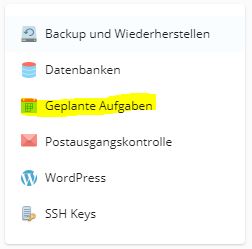
To automate the updates, we need a so-called cronjob (in Plesk it is called„Scheduled Tasks“ in German and is located under Websites & Domains in the right side menu) with which we run WP-CLI on our WordPress installation. Cronjobs can be used to execute time-controlled commands or call URLs. A mail notification can also be set up for each call or in the event of an error. The following explanations refer to a Linux hosting which is found in > 99% of the case with most. If you are one of the few who have Windows hosting, the steps need to be adjusted a bit.
In order to use WP-CLI, we need to install it first. For this purpose we download it and place WP-CLI in our own web hosting or server. The package contains the executable file „wp“. It should now be placed in the file system in the web hosting (use either FTP, SFTP or the file manager of the hosting panel for this purpose). For the file to actually execute, it needs an execute right. To do this, use the file manager or FTP program to set the execution rights (see e.g. Plesk doc). Now we are ready to create the planned task.
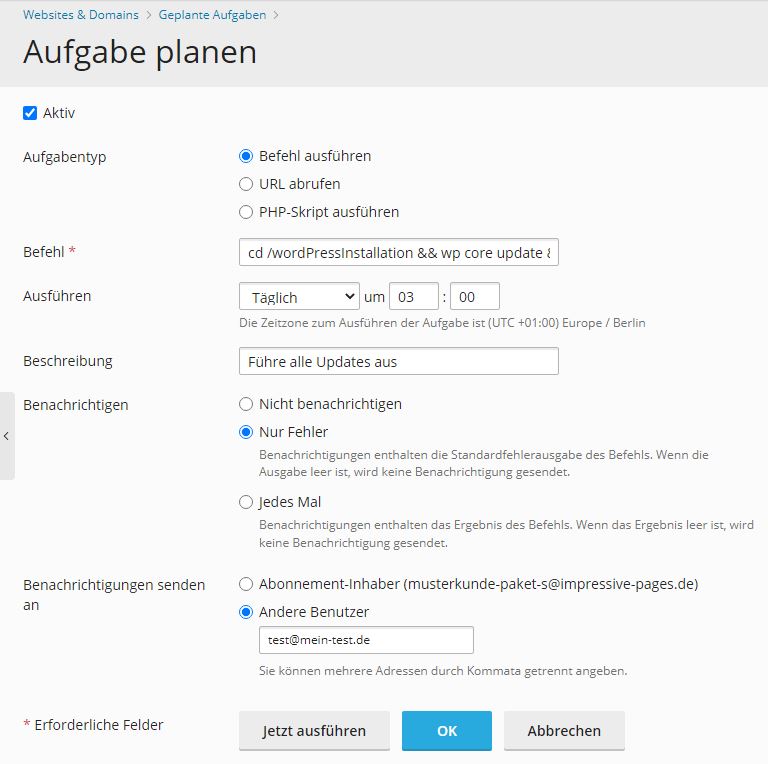
In Linux commandline shells, where the execution of cronjobs takes place, there is a possibility to chain commands. With && commands are concatenated and executed in order from left to right (e.g. Command1 && Command2 –MyParameter etc.). You can also use the & operator instead of &&. Then the following commands will be executed only if the previous command has been executed successfully. But in this case it does not make a big difference for our automatic updates which operator we use.
So that really everything is updated incl. of the translation files we use the following command:
cd /wordPressInstallation && wp core update && wp plugin update --all && wp theme update --all && wp language core update && wp language plugin update --all && wp language theme update --allFirst we change with cd /wordPressInstallation to the WordPress installation directory (often the WordPress installation is located under /httpdocs). If there are multiple WordPress instances, a scheduled task can be created for each site and the steps are repeated for each appearance. After that, wp core update triggers the update (or update check) of WordPress itself and wp plugin update –all and wp theme update –all start the update of all plugins and themes. Here you can also restrict for which plugins/themes the updates should be made or which should be ignored.
The most interesting point is the wp language command. This can be used to update the said translation files. Accordingly, this can be done for Core (WordPress itself), plugins and themes.
In order to use wp as a command, the path to the directory where the wp executable file is located must be contained in the so-called PATH variable. To do this, add the following line to the .profile file (create file if necessary) in the root directory of the hosting:
PATH=/mybin:$PATH/mybin must be replaced accordingly with the path where wp is located. Alternatively, the absolute path in the cronjobs can be used instead of wp, e.g. /mybin/wp core update. Then the extension of the PATH variable is not necessary.
Update WP-CLI regularly
In order for WP-CLI to always be up-to-date and thus compatible with the current WordPress version, it must also be updated regularly. The clever with the following command.
wp cli updateFor this purpose, we also create a scheduled task. I run it in my customer hostings 1x a month. This is perfectly sufficient for the update frequency of WP-CLI.